Setup
Multiple LightCam Devices Found: Choose the Right One
Identify and pair to the correct device in a crowded environment.
Multiple LightCam Devices Found: Choose the Right One
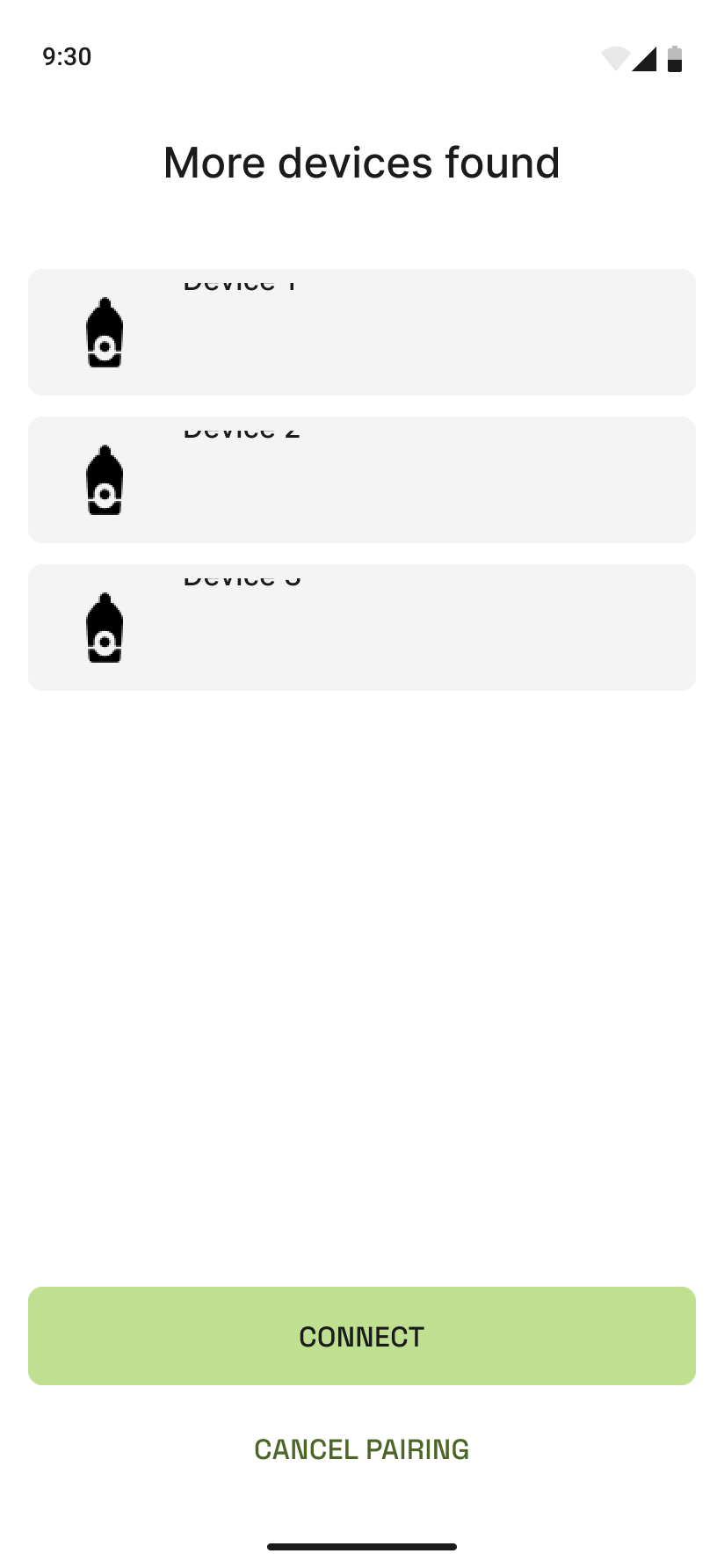
If the app finds more than one LightCam when you’re adding a device, pick the one you’re setting up so you don’t pair the wrong camera.
Prerequisites
- You’re in the add-device flow and the app has finished scanning.
- More than one LightCam is powered on and in range (e.g. you already have one set up and are adding a second).
Step-by-Step Guide
-
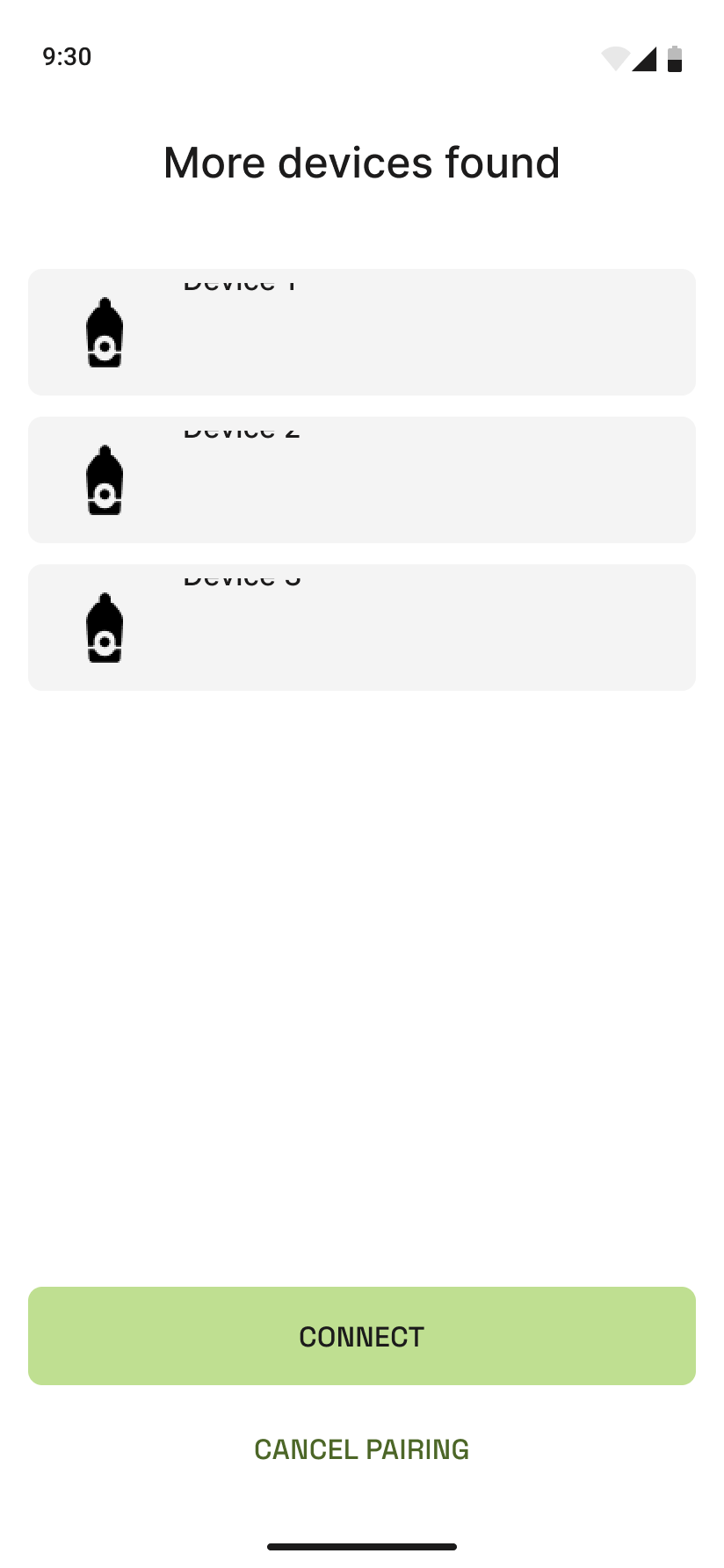
Check the device list The app shows Multiple devices found and lists the devices it detected. Each entry usually shows a name or identifier (e.g. serial or “LightCam”).
-
Identify the new camera
- If you’re adding a new LightCam: pick the one that isn’t already named or that matches the room you’re in. You can also turn off the other camera’s light briefly so only the new one appears.
- If both are new: choose by location (e.g. “Living room”) or add one now and the other in a second setup run.
-
Tap the correct device Tap the row for the device you want to set up. The app will continue to Wi‑Fi and pairing for that device only.
-
Finish setup Enter Wi‑Fi and complete pairing as in LightCam Setup: End-to-End in 5 Minutes.
Common Issues & Fixes
- Can’t tell which is which: Power off one LightCam at the switch, run “Add device” again, and only the powered one should appear. After pairing it, repeat for the other.
- Wrong device selected: Cancel or go back, then start add-device again and choose the correct one from the list.
- Only one appears but I have two: Ensure both are powered and the blue LED is blinking on the one you’re adding. Move the phone closer and retry.
Still Stuck?
- LightCam Setup: End-to-End in 5 Minutes
- Camera Not Found During Setup
- Go to your account → Messages to contact support.
Last updated: February 2026