Setup
Camera Not Found During Setup
Recover quickly when your device does not appear in scanning.
Camera Not Found During Setup
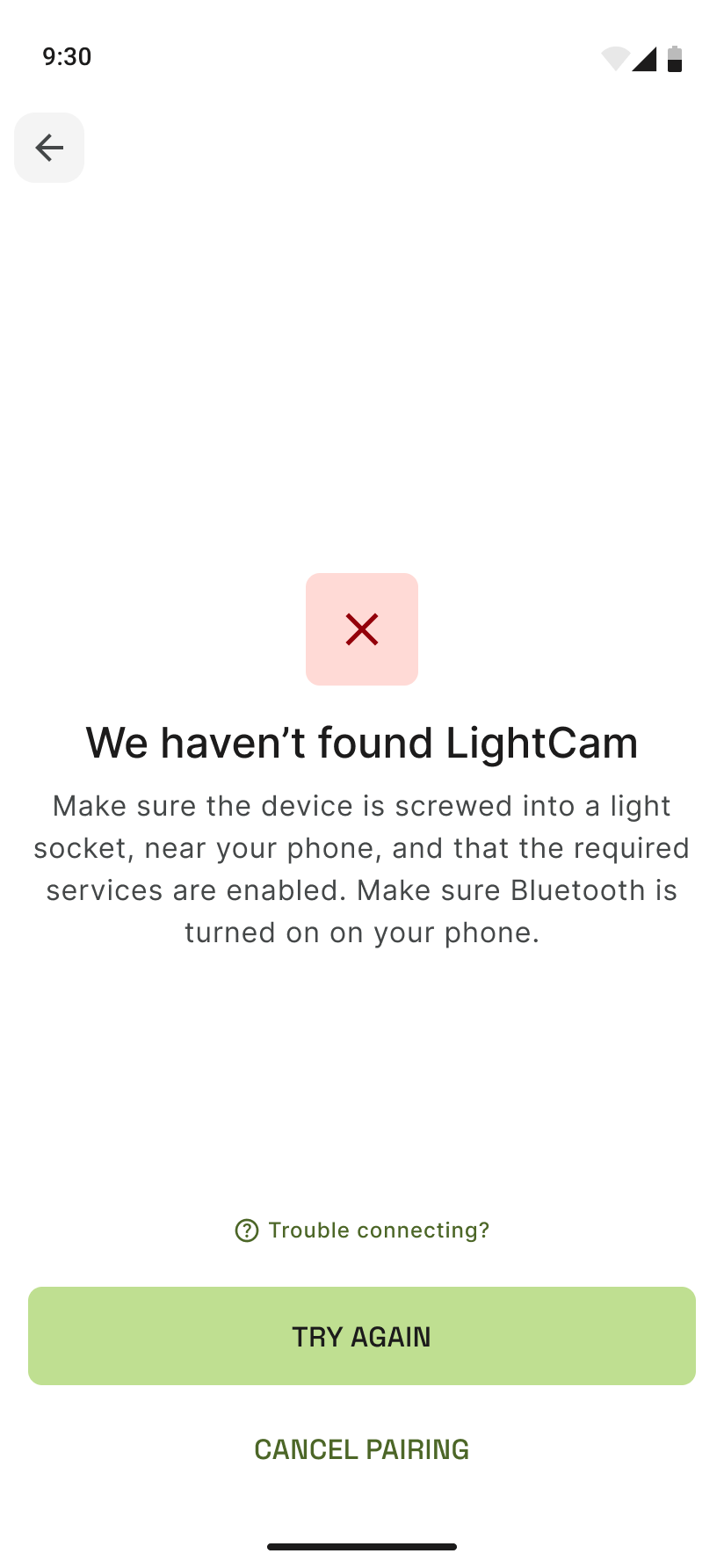
If the app says it can’t find your LightCam, use these steps to get it detected.
Prerequisites
- LightCam is screwed into a powered light socket and the switch is ON.
- You’re in the add-device / setup flow in the app.
- Phone Bluetooth (and location, if prompted) is enabled.
Step-by-Step Guide
-
Check the “Device not found” screen The app will show a message that no device was found. Don’t leave this screen yet.
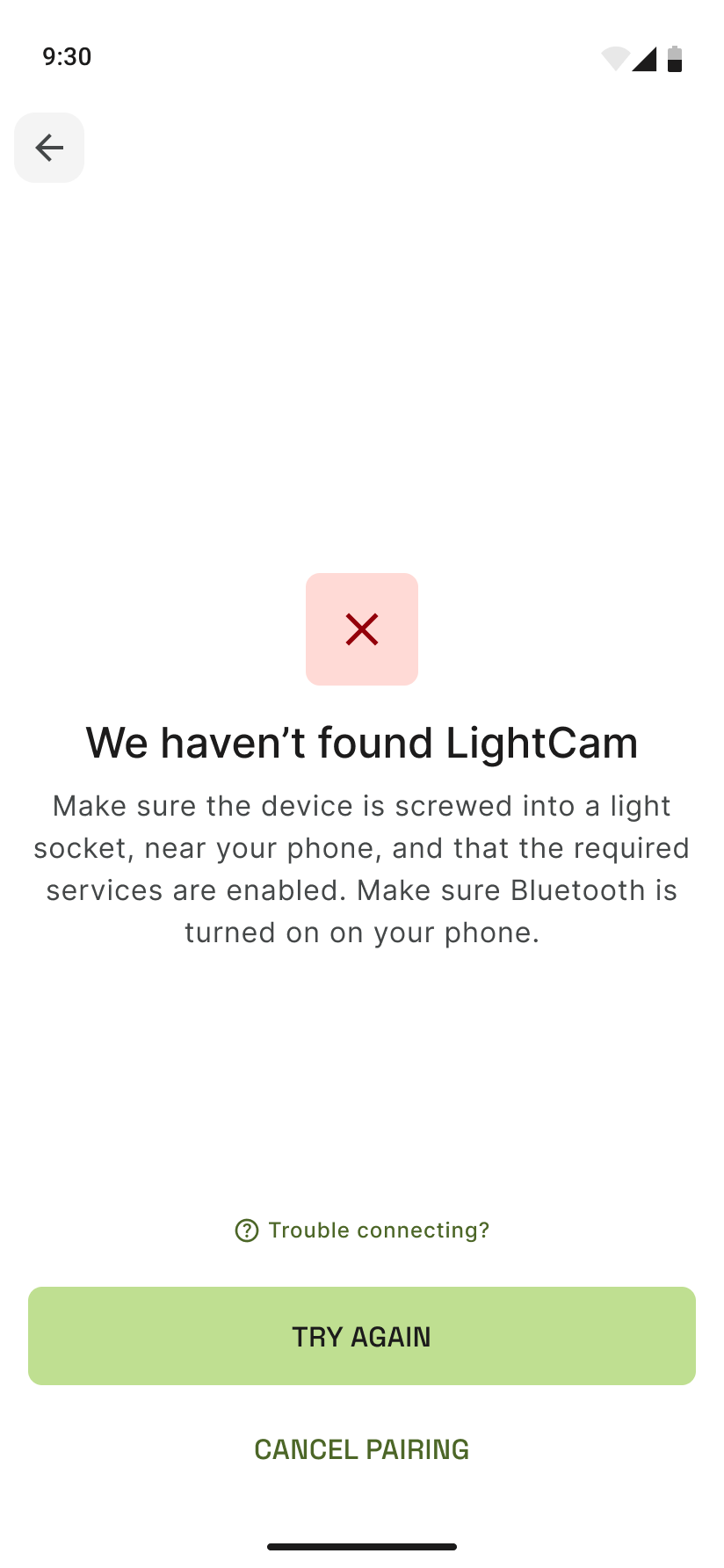
-
Confirm power and LED
- Turn the light switch off, wait 5 seconds, then turn it on again.
- Watch for a blue blinking LED on the LightCam. If you never see it, the bulb may not be getting power or may need to be seated firmly in the socket.
-
Retry in the app Tap Retry (or Try again) on the same screen. Keep the phone close to the LightCam and avoid moving to another room during search.
-
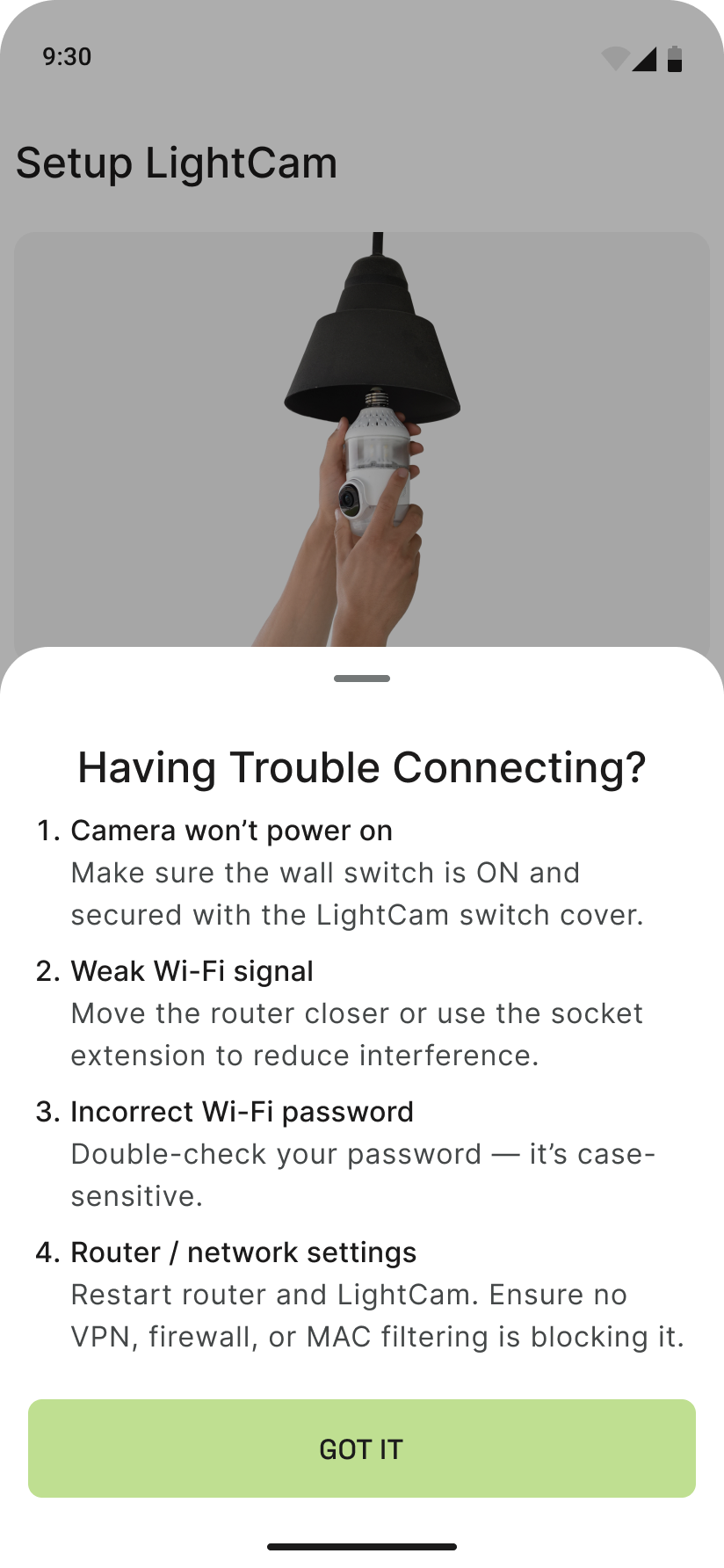
Use “Need more help?” if it keeps failing On the setup or not-found screen, tap Need more help? for more options and troubleshooting.
Common Issues & Fixes
- No blue LED: Ensure the bulb is fully screwed in and the switch is on. Try a different socket to rule out a bad connection.
- Phone too far: Stay in the same room as the LightCam during “Looking for device.”
- Wrong network: You don’t choose Wi‑Fi until after the device is found; the “not found” step is about the app discovering the hardware.
Still Stuck?
- LightCam Setup: End-to-End in 5 Minutes
- Need More Help During Setup?
- Go to your account → Messages to contact support.
Last updated: February 2026