Connectivity & Pairing
Fix Wi-Fi Connection Errors During Pairing
Resolve authentication, signal, and password errors during pairing.
Fix Wi-Fi Connection Errors During Pairing
If the app shows a Wi‑Fi error while pairing your LightCam, use these steps to get connected.
Prerequisites
- Your LightCam has been found by the app and you’re on the step where the app connects it to Wi‑Fi.
- You know your Wi‑Fi network name (SSID) and password.
- Phone is on the same Wi‑Fi (or will be) that you want the camera to use.
Step-by-Step Guide
-
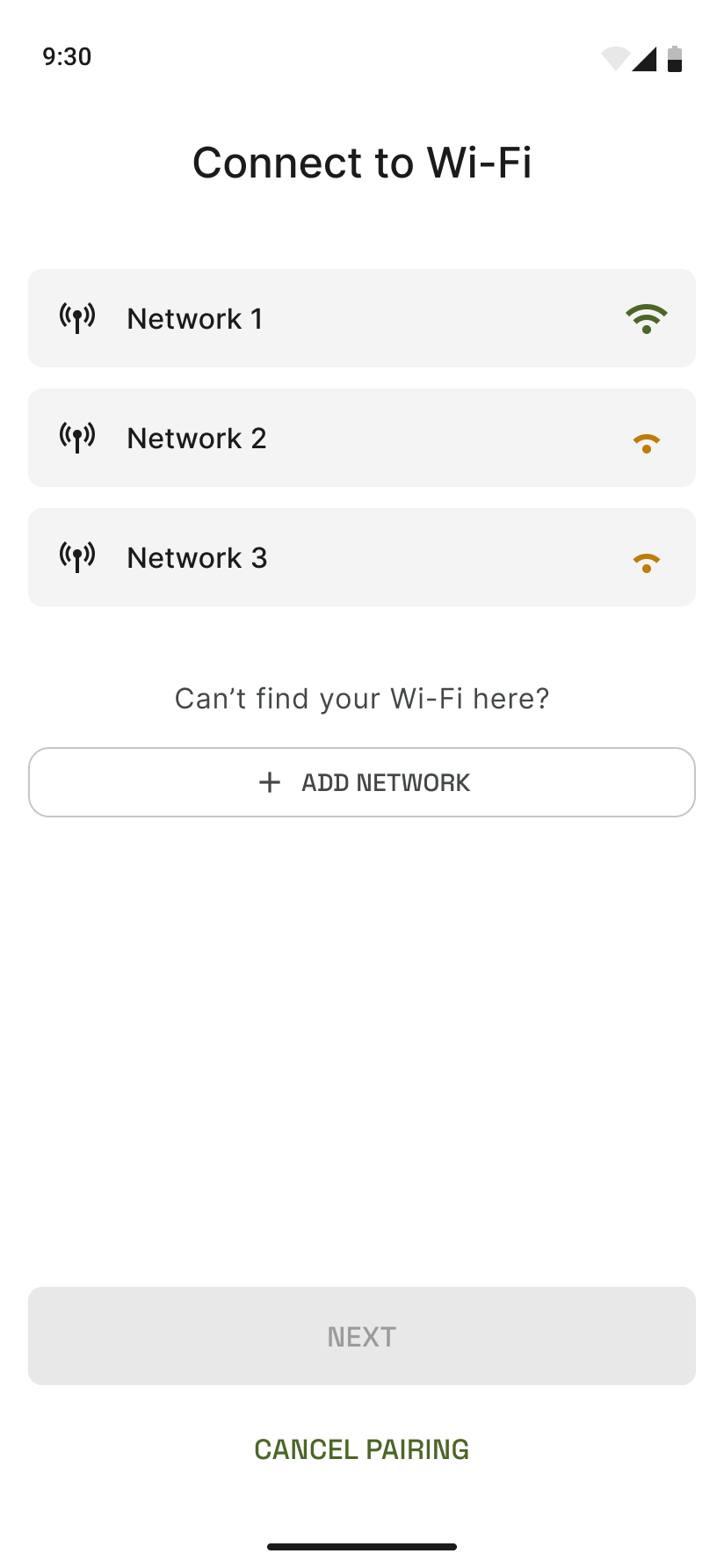
Check the Wi‑Fi connection screen The app lists nearby networks. Select your home (or target) network. If you don’t see it, use Add network for a hidden SSID (see Manual Wi‑Fi Entry).
-
Enter the correct password Type your Wi‑Fi password carefully. Use “Show password” to avoid typos. Then tap Connect (or equivalent).
-
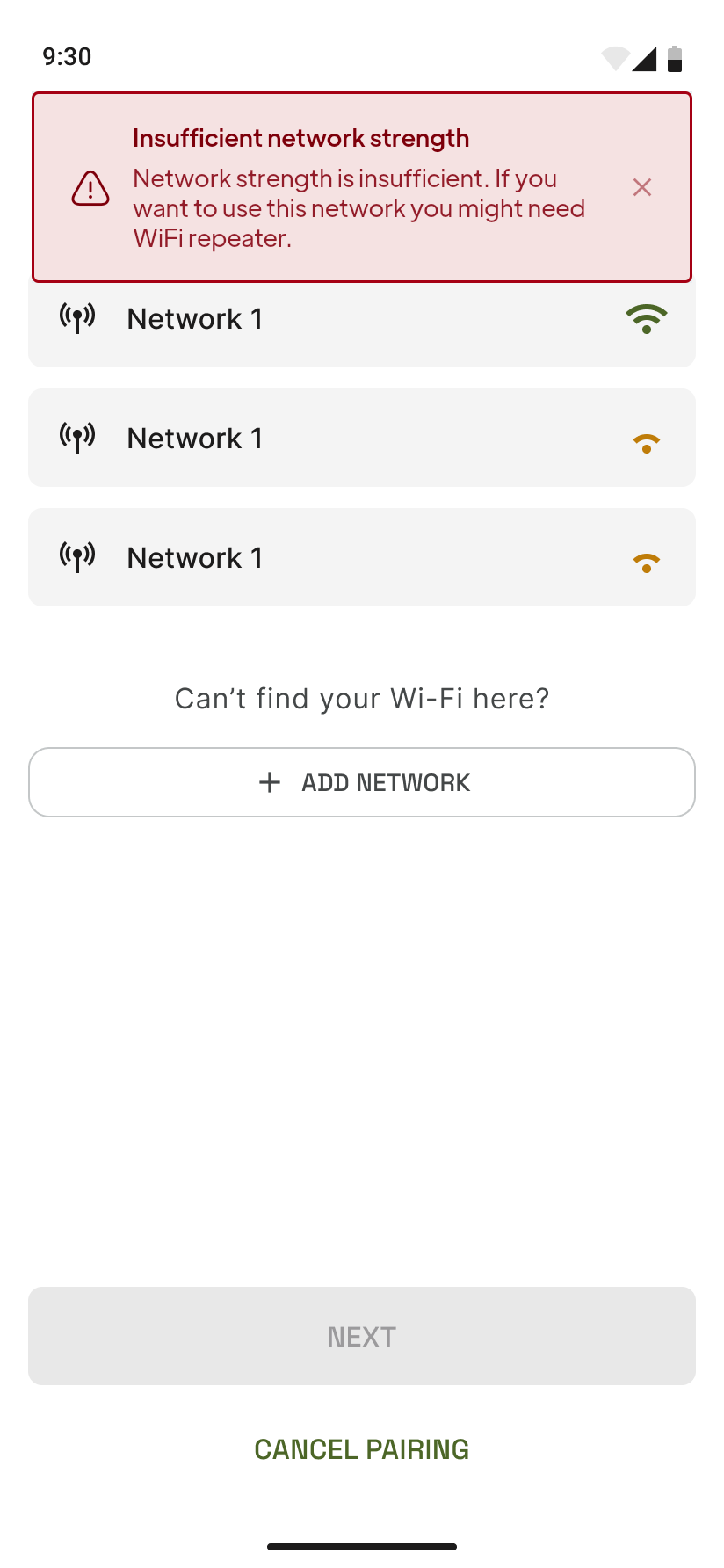
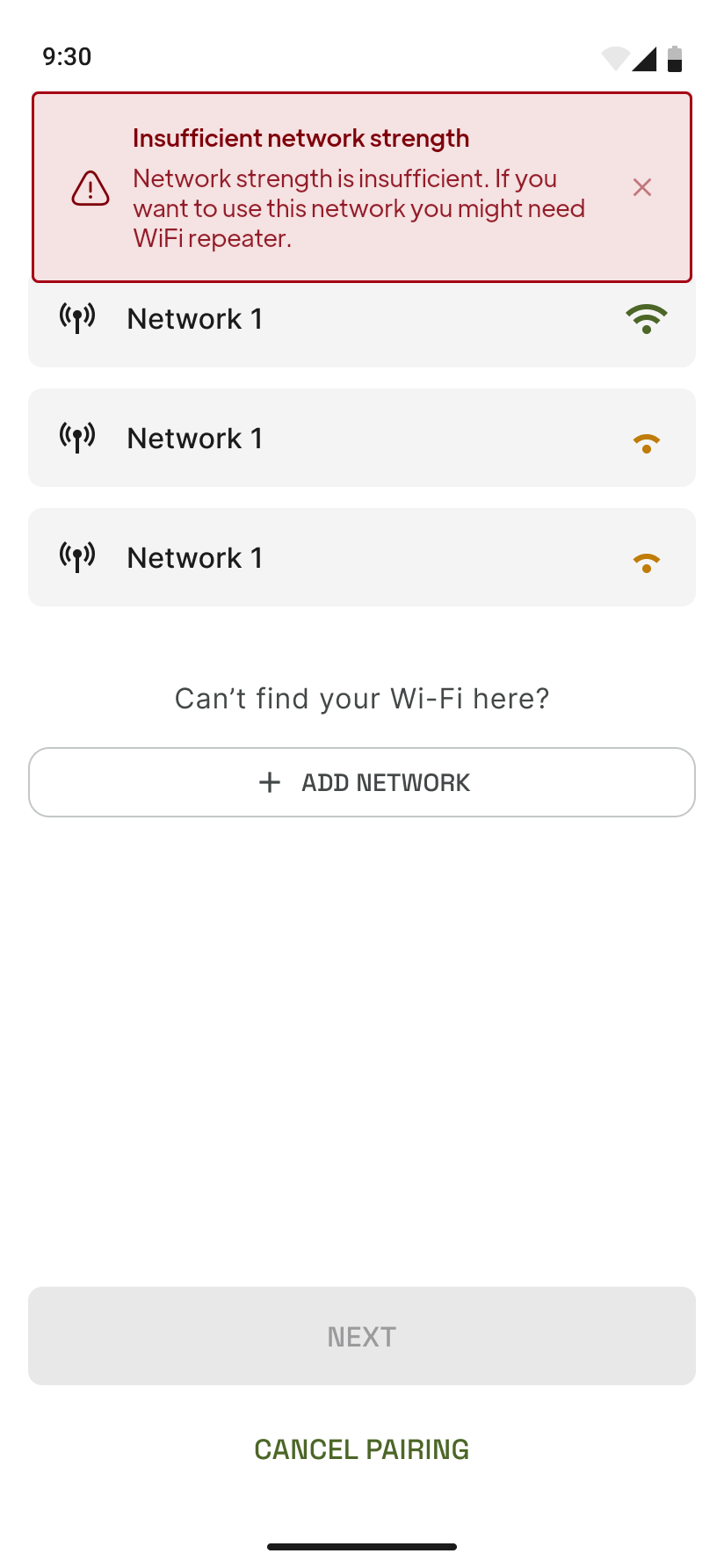
If you see “Wi‑Fi connection error” The app will show an error message or snackbar. Often this is a wrong password, weak signal, or router blocking the device.
-
Retry with these checks
- Re-enter the Wi‑Fi password and try again.
- Move the phone (and LightCam, if possible) closer to the router.
- Eero mesh Wi‑Fi: If your router uses one name for 2.4 GHz and 5 GHz, temporarily pause the higher bands in the eero app so setup can use 2.4 GHz only—see Eero: Temporarily Pause 5 GHz During LightCam Setup.
- Restart your router, then run the Wi‑Fi step again in the app.
- For hidden networks, use Manual Wi‑Fi Entry (Hidden SSID / Add Network).
Common Issues & Fixes
- Wrong password: Double-check the password; many routers show it on a label. Avoid extra spaces at the start or end.
- Network not in list: If your network is hidden, tap Add network and enter the SSID and password. See Manual Wi‑Fi Entry.
- Connection times out: Ensure the LightCam is still powered and the app hasn’t been closed. Retry the Wi‑Fi step from the setup flow.
Still Stuck?
- Manual Wi‑Fi Entry (Hidden SSID / Add Network)
- Pairing Stuck in Progress: What to Do Next
- Go to your account → Messages to contact support.
Last updated: February 2026