Eero: Temporarily Pause 5 GHz During LightCam Setup
Use eero’s band pause so LightCam can finish setup on 2.4 GHz when one SSID covers multiple bands.
Eero: Temporarily Pause 5 GHz During LightCam Setup
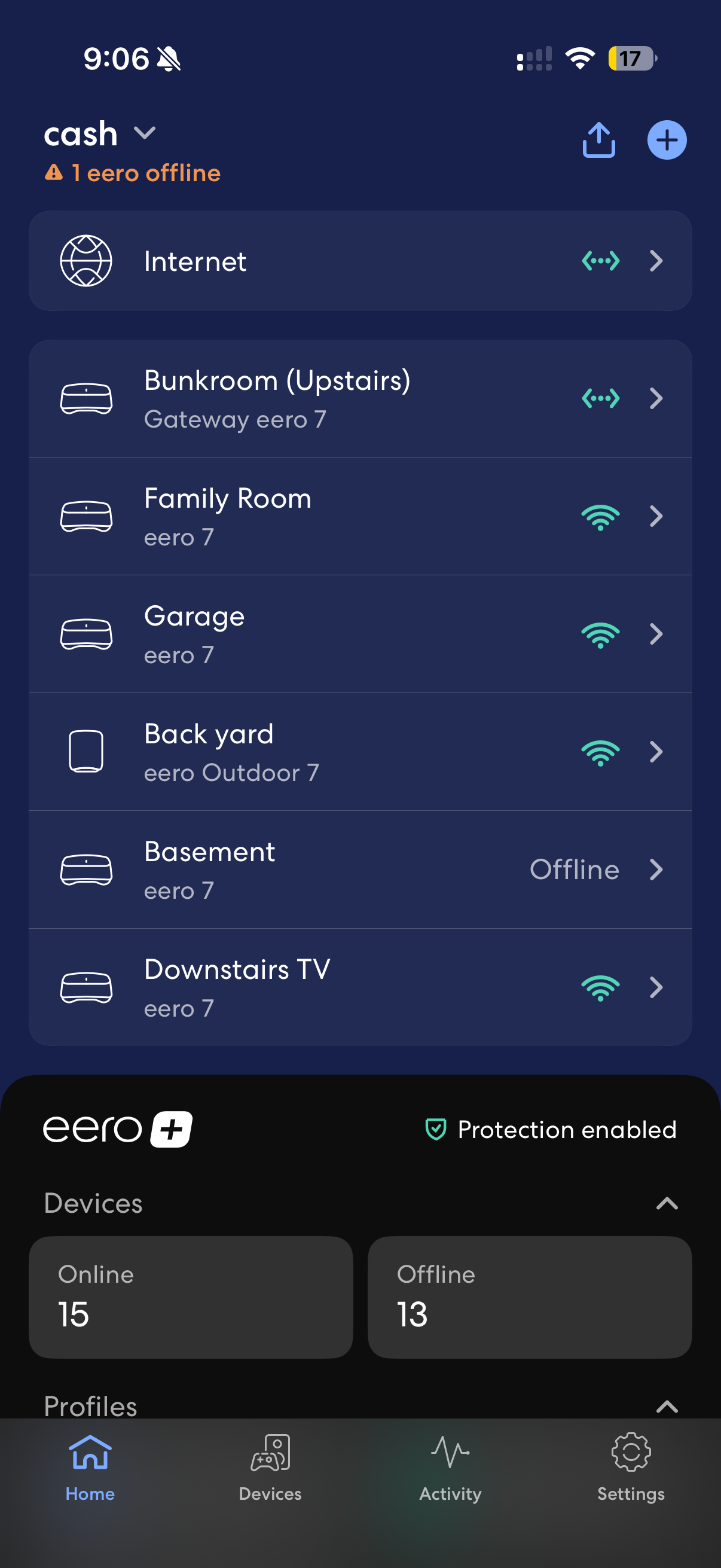
Some home networks use one Wi‑Fi name for both 2.4 GHz and 5 GHz. LightCam connects over 2.4 GHz during setup. On Eero systems, the network also uses multiple bands at once (2.4 GHz, 5 GHz, and 6 GHz on supported hardware), which is great for speed—but during first-time setup, a 2.4 GHz–only device can fail to join or finish provisioning if your phone and router are favoring the faster bands.
Why this helps: Pausing the higher bands forces your network to 2.4 GHz only for a short time so the camera and app can complete Wi‑Fi onboarding on the band the device actually supports. After that, Eero turns the other bands back on automatically.
Before you start
- Install the eero app and sign in to the network where you’re installing LightCam.
- Have your LightCam powered and keep the LightCam app ready—you’ll want to run the Wi‑Fi step while the pause is active.
Step-by-step: Pause 5 GHz (and 6 GHz) in eero
-
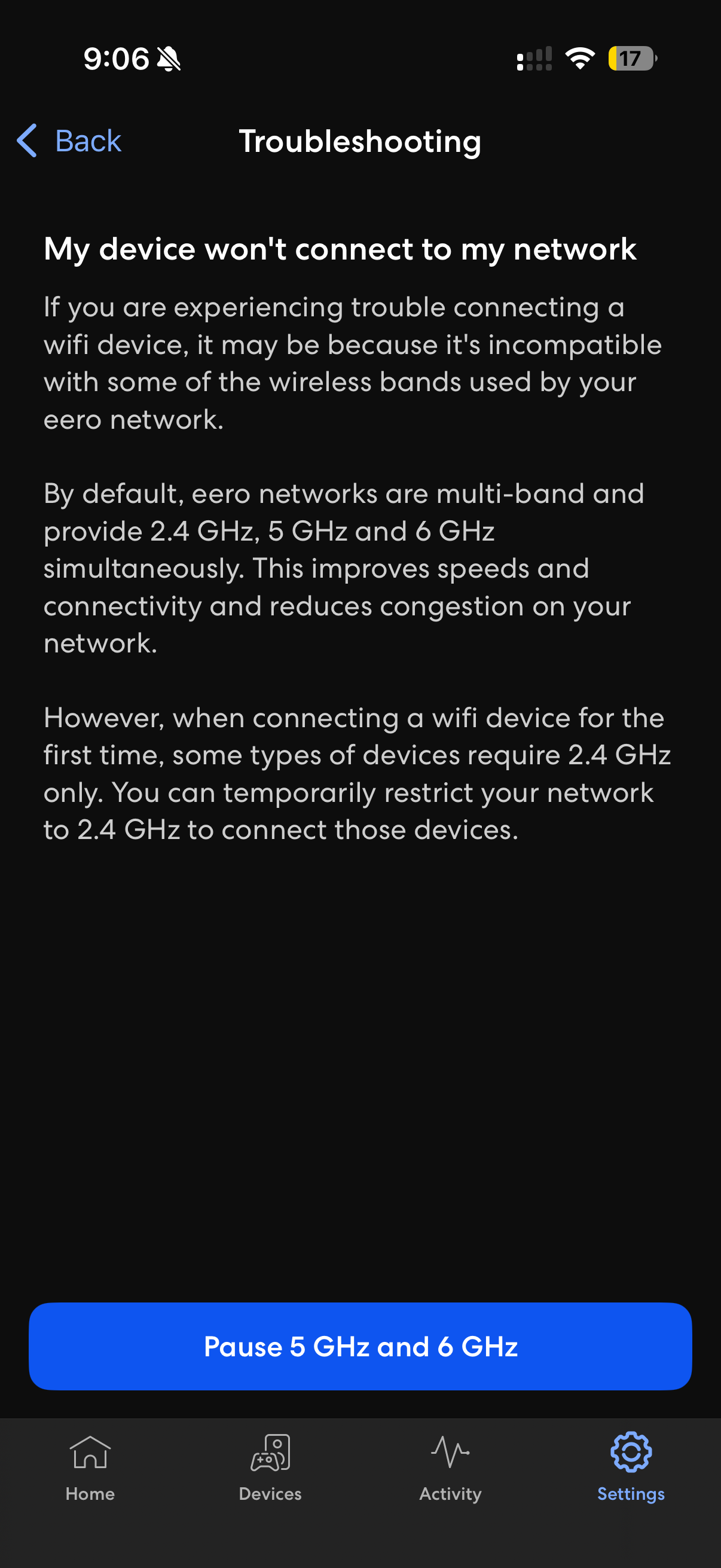
Open the eero app to the home screen, then tap Settings (gear icon) in the bottom navigation (see screenshot above).
-
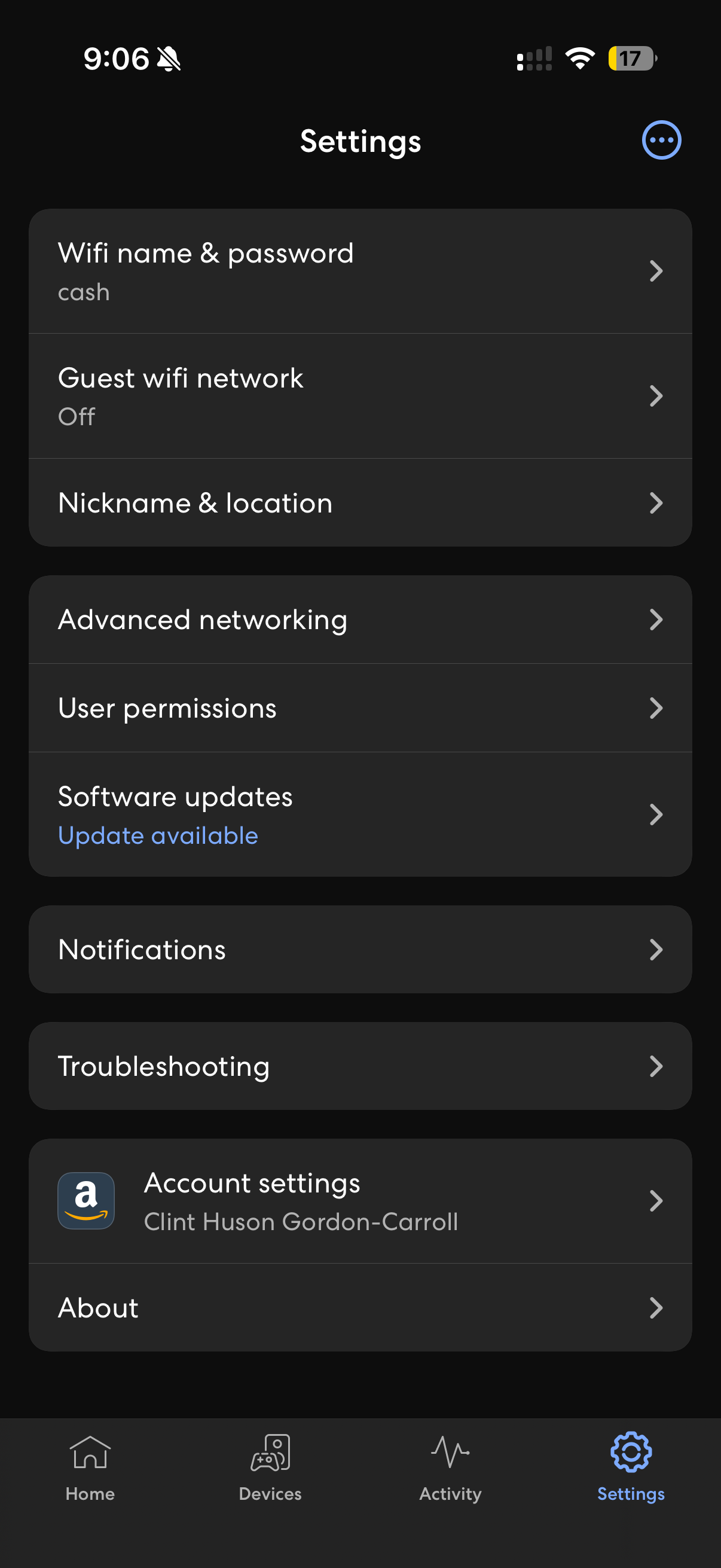
On the Settings list, tap Troubleshooting.
-
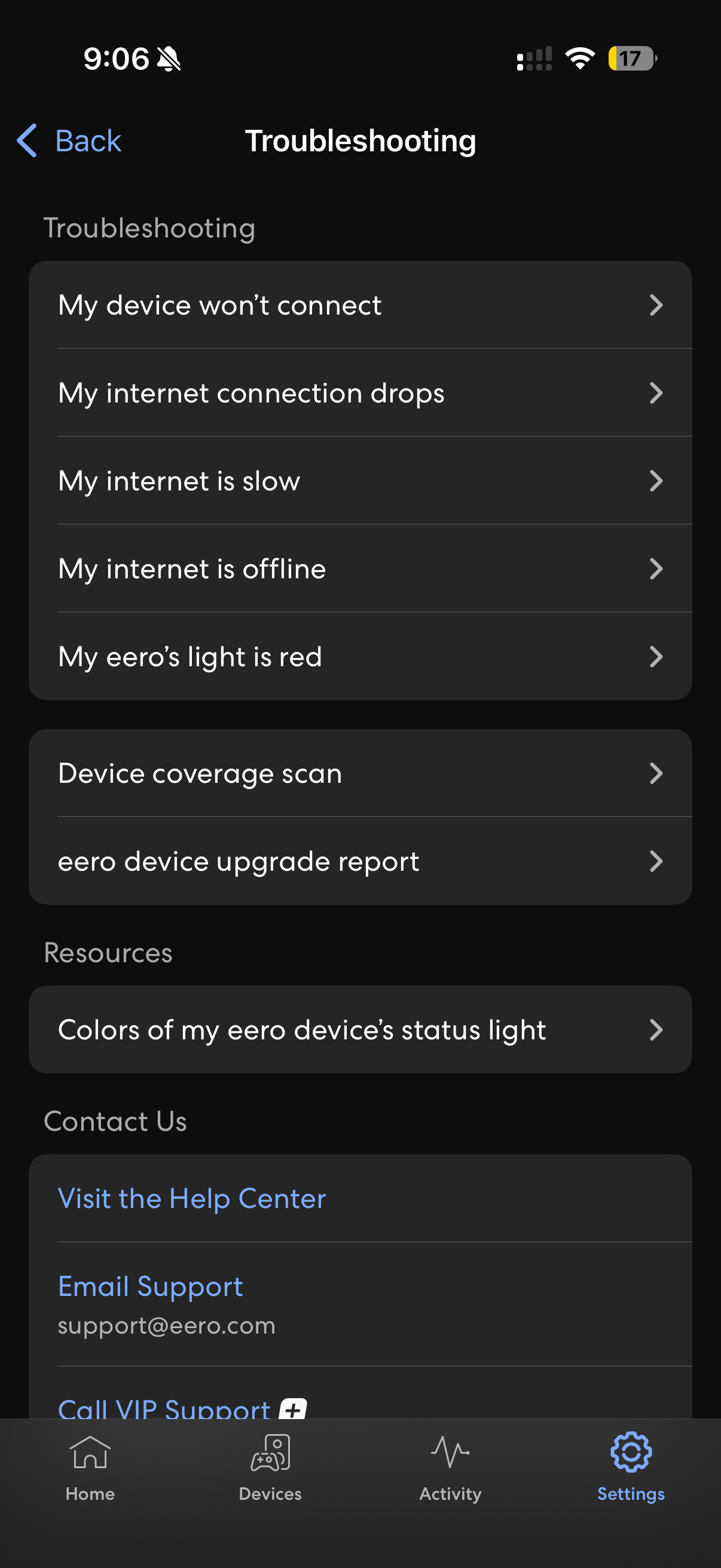
Tap My device won’t connect.
-
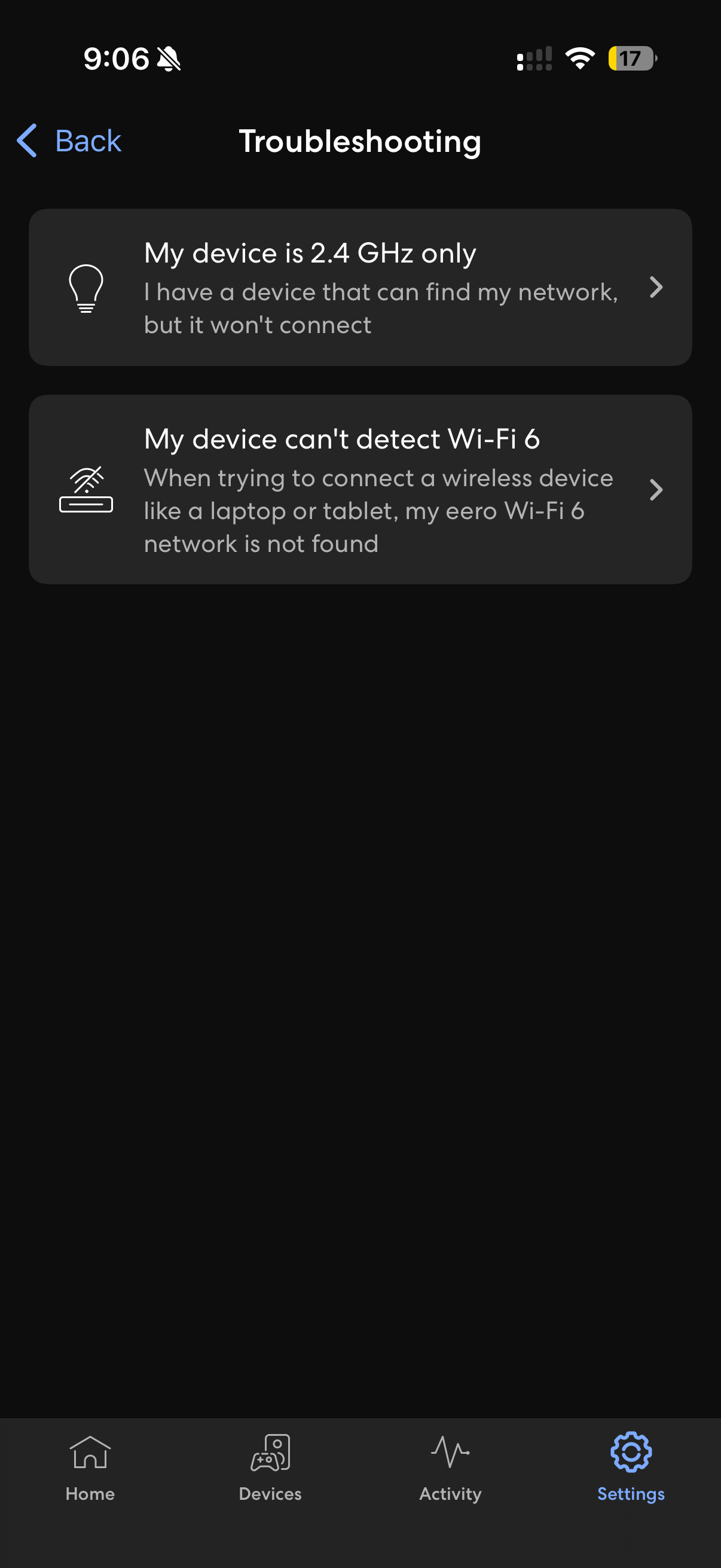
Tap My device is 2.4 GHz only (for devices that see the network but won’t connect).
-
Tap Pause 5 GHz and 6 GHz. eero will temporarily restrict the network to 2.4 GHz so you can add the device.
-
Switch back to the LightCam app right away and complete the Wi‑Fi / pairing steps. Finish before the pause window ends (eero typically restores the other bands after about 10 minutes).
-
When you’re done, you don’t need to do anything special—5 GHz and 6 GHz come back on their own. If you finish early, you can go Back in eero or wait for the timer; your existing devices should keep working.
If it still fails
- Move the phone and LightCam closer to an eero node and try the Wi‑Fi step again during a fresh pause.
- Double-check the Wi‑Fi password (see Fix Wi‑Fi Connection Errors During Pairing).
- For hidden network names, use Manual Wi‑Fi Entry (Hidden SSID / Add Network).
Still stuck?
- Fix Wi‑Fi Connection Errors During Pairing
- Pairing Stuck in Progress: What to Do Next
- Go to your account → Messages to contact support.
Last updated: March 2026