Pairing Stuck in Progress: What to Do Next
Troubleshoot stalled pairing and recover without restarting everything.
Pairing Stuck in Progress: What to Do Next
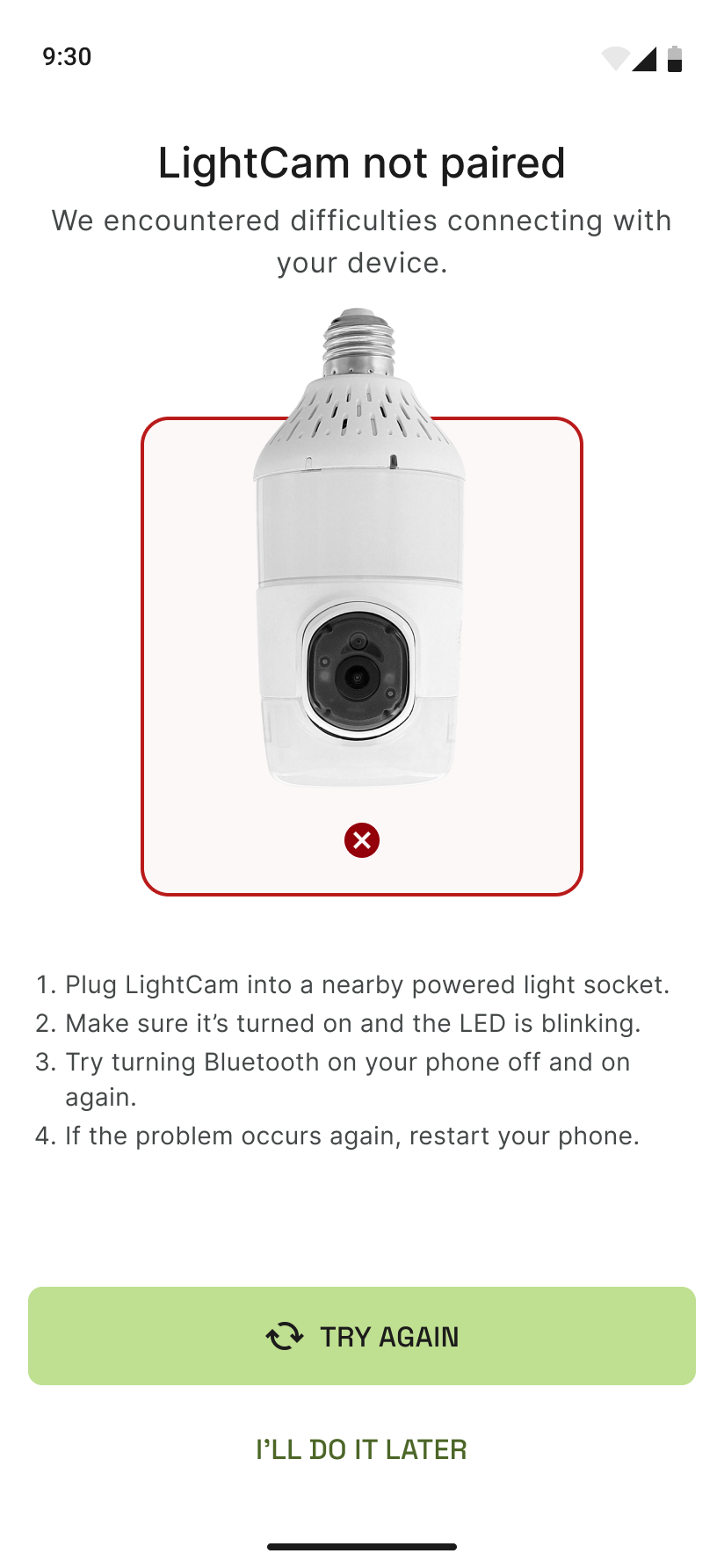
If the app stays on “Pairing in progress” for a long time or you see “Not paired,” try these steps.
Prerequisites
- You’ve already selected your LightCam (device found) and started pairing.
- The app is showing a spinner or “Pairing in progress” (or later “Not paired”).
Step-by-Step Guide
-
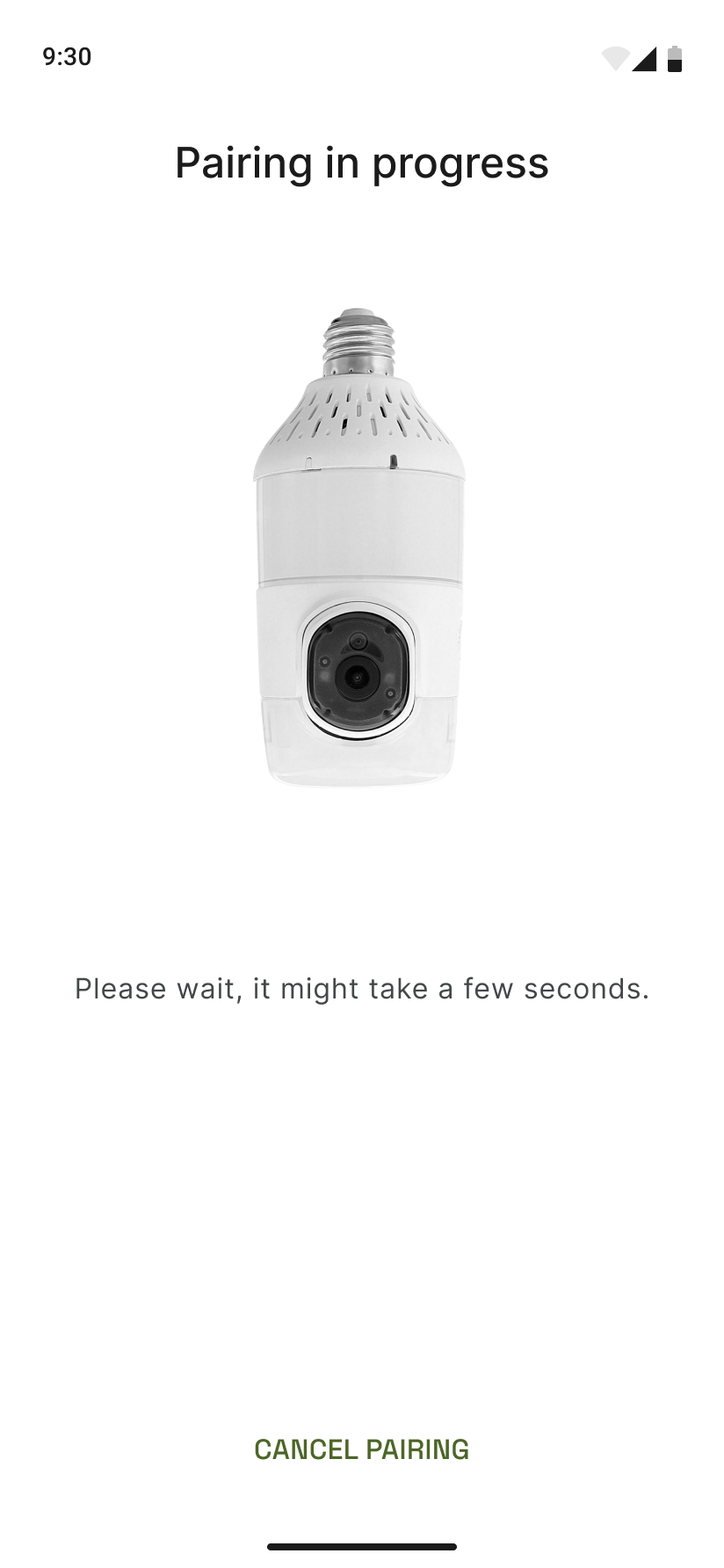
Wait a bit the first time Pairing can take 30–60 seconds. If you see a progress bar or “Pairing in progress,” leave the app open and stay on the same Wi‑Fi network.
-
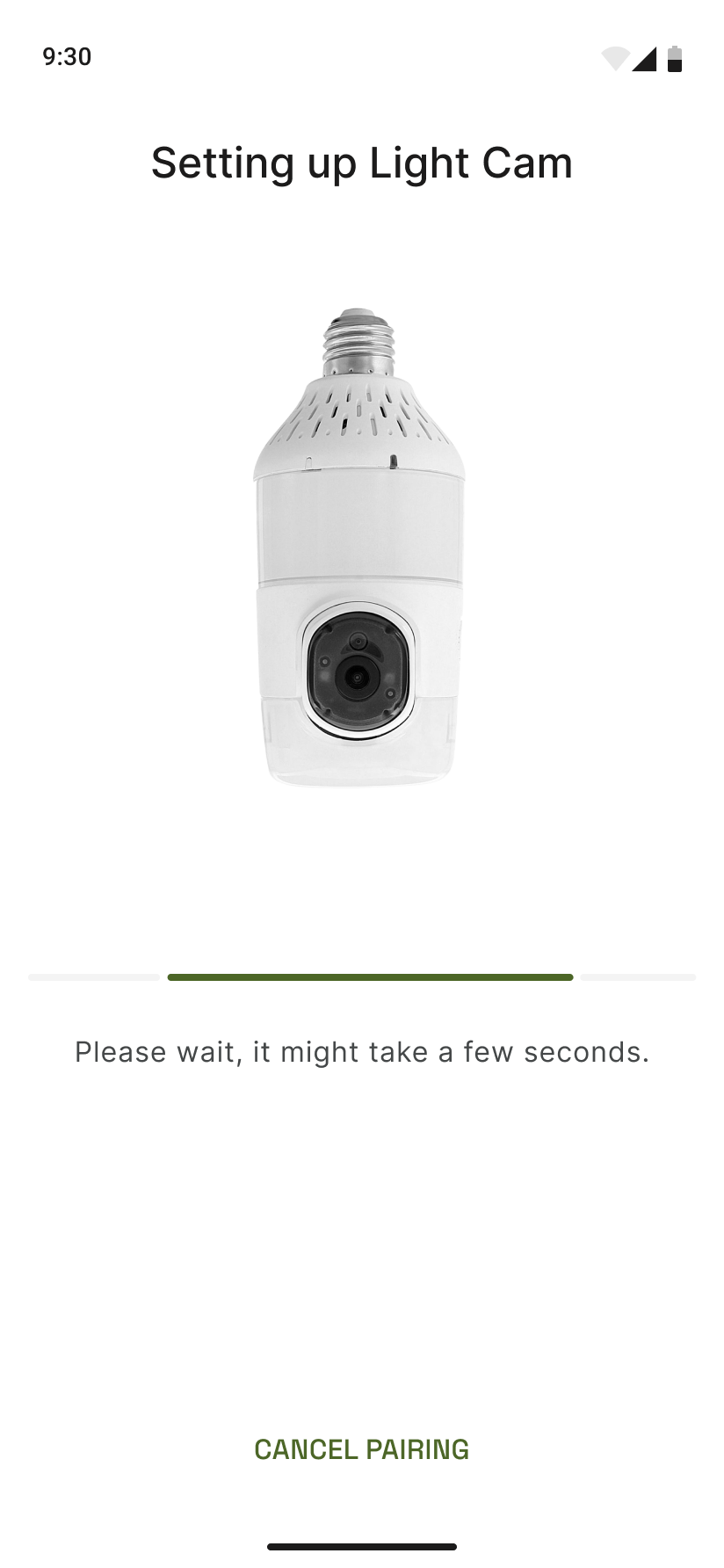
If a progress bar is shown Some flows show a progress bar. Let it finish. Do not close the app or switch to another network.
-
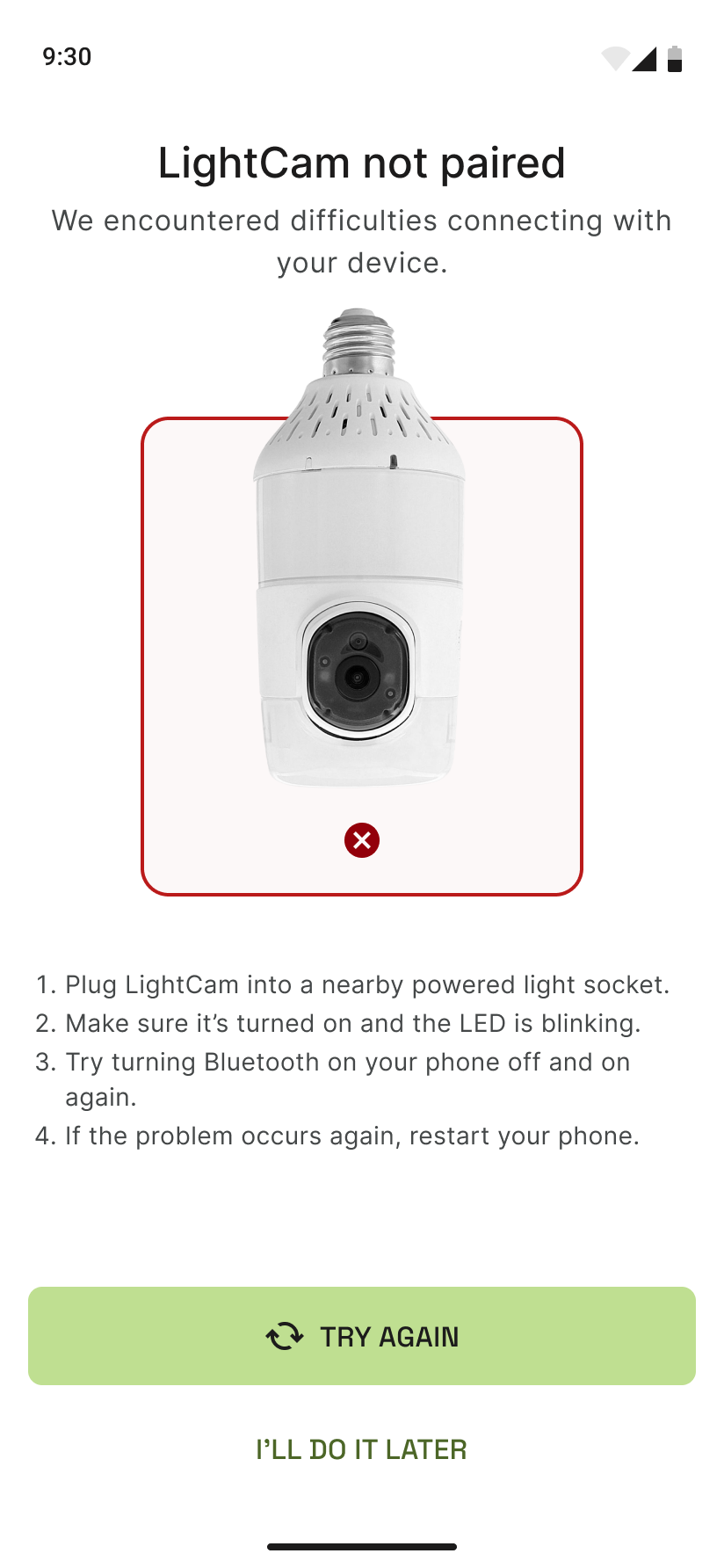
If you see “Not paired” The app will explain that pairing didn’t complete. Tap Retry (or Try again) and repeat the flow from “Device found” through Wi‑Fi. Ensure the LightCam is still powered and the Wi‑Fi password is correct.
-
If it’s still stuck after several minutes
- Turn the light switch off for 10 seconds, then on again (blue LED should blink).
- In the app, go back and start setup from the beginning (Add device → find device → Wi‑Fi → pairing).
- Restart your router if other devices are also having trouble.
Common Issues & Fixes
- Stuck spinner: Usually a Wi‑Fi or network issue. See Fix Wi‑Fi Connection Errors During Pairing and try re-entering the password.
- “Not paired” right after Wi‑Fi: Wrong password or router blocking the device. Re-check password and router settings, then retry.
- Works then drops: If the camera pairs but later goes offline, see Pairing Succeeded but Camera Still Not Usable.
Still Stuck?
- Fix Wi‑Fi Connection Errors During Pairing
- LightCam Setup: End-to-End in 5 Minutes
- Go to your account → Messages to contact support.
Last updated: February 2026